
Mastering ps aux
The Heartbeat of Your System

If grep is the librarian and wget is the courier, ps aux is the security camera control room. It gives you a complete, real-time snapshot of everything happening on your system right now.
When your computer feels sluggish, a fan starts spinning loudly, or an application freezes, ps aux is the first command a system administrator runs to answer the question: “What is this computer actually doing?”
What is ps aux?
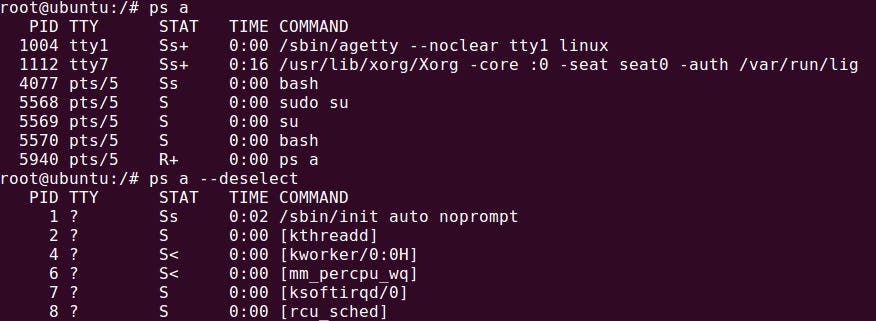
ps stands for Process Status.
By itself, ps is quite shy—it only shows processes running in your current terminal session.
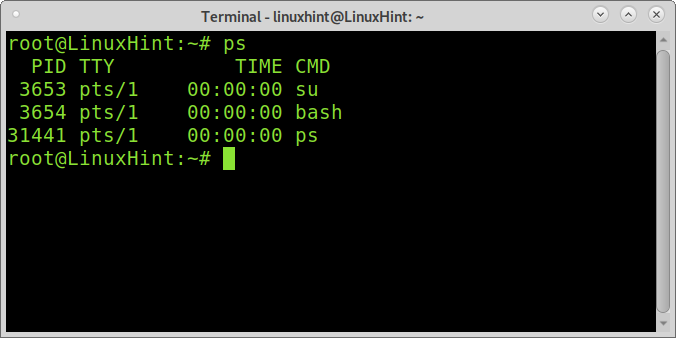
To see the whole picture, we add the flags aux.
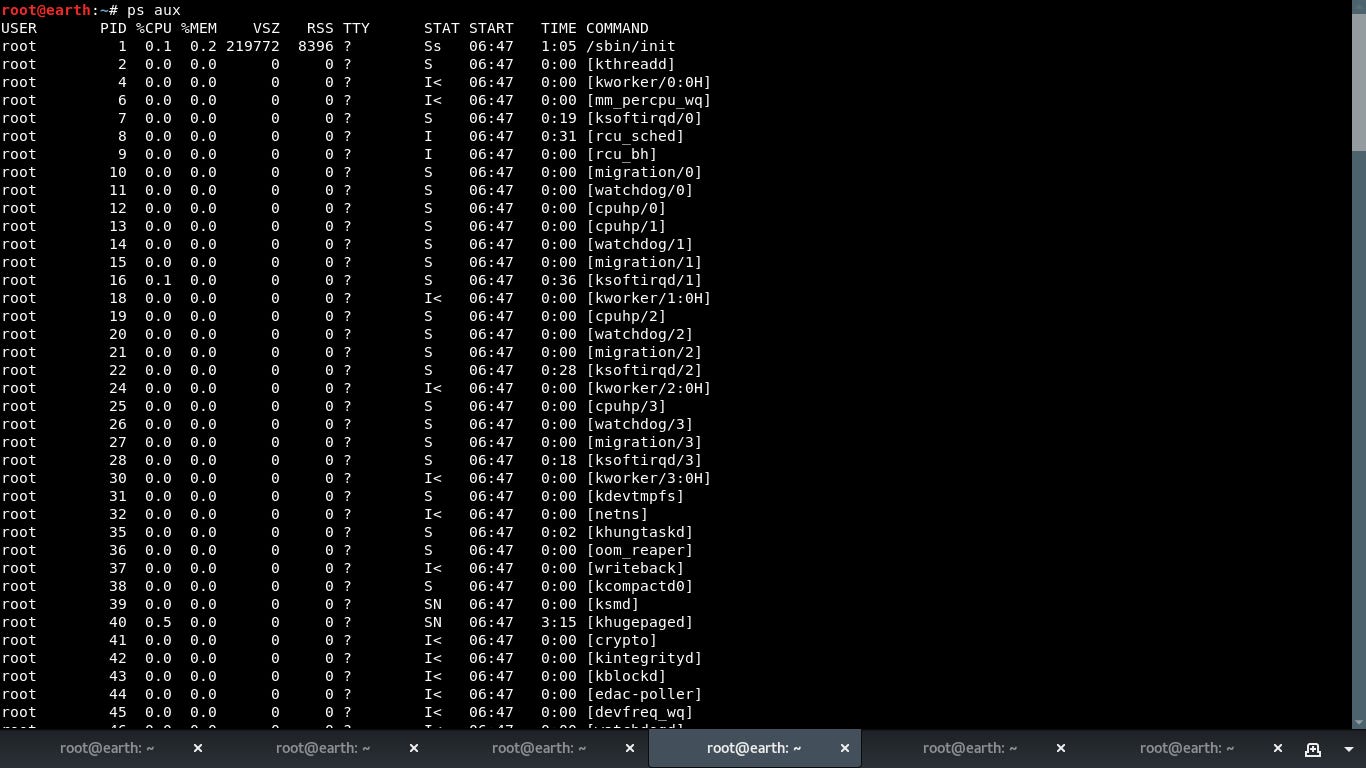
Unlike many other Linux commands where flags are prefixed with a dash (like -r or -l), ps is unique because it has roots in BSD Unix, which allows flags without dashes. (Though ps -aux often works too, ps aux is the standard convention).
Note: Berkeley Software Distribution (BSD) is a historic, Unix-like operating system derived from AT&T’s original Unix, developed at the University of California, Berkeley, starting in 1978. It is renowned for its stability, networking performance, and permissive license. Modern, open-source descendants include FreeBSD, NetBSD, and OpenBSD. While Linux and BSD are bothUnix-like and share similar tools, they have different histories and development models. BSD is often considered more “complete” as a single entity, whereas Linux is a combination of the Linux kernel and GNU software.

Decoding the Flags: A-U-X
The power of this command lies in the combination of these three letters:
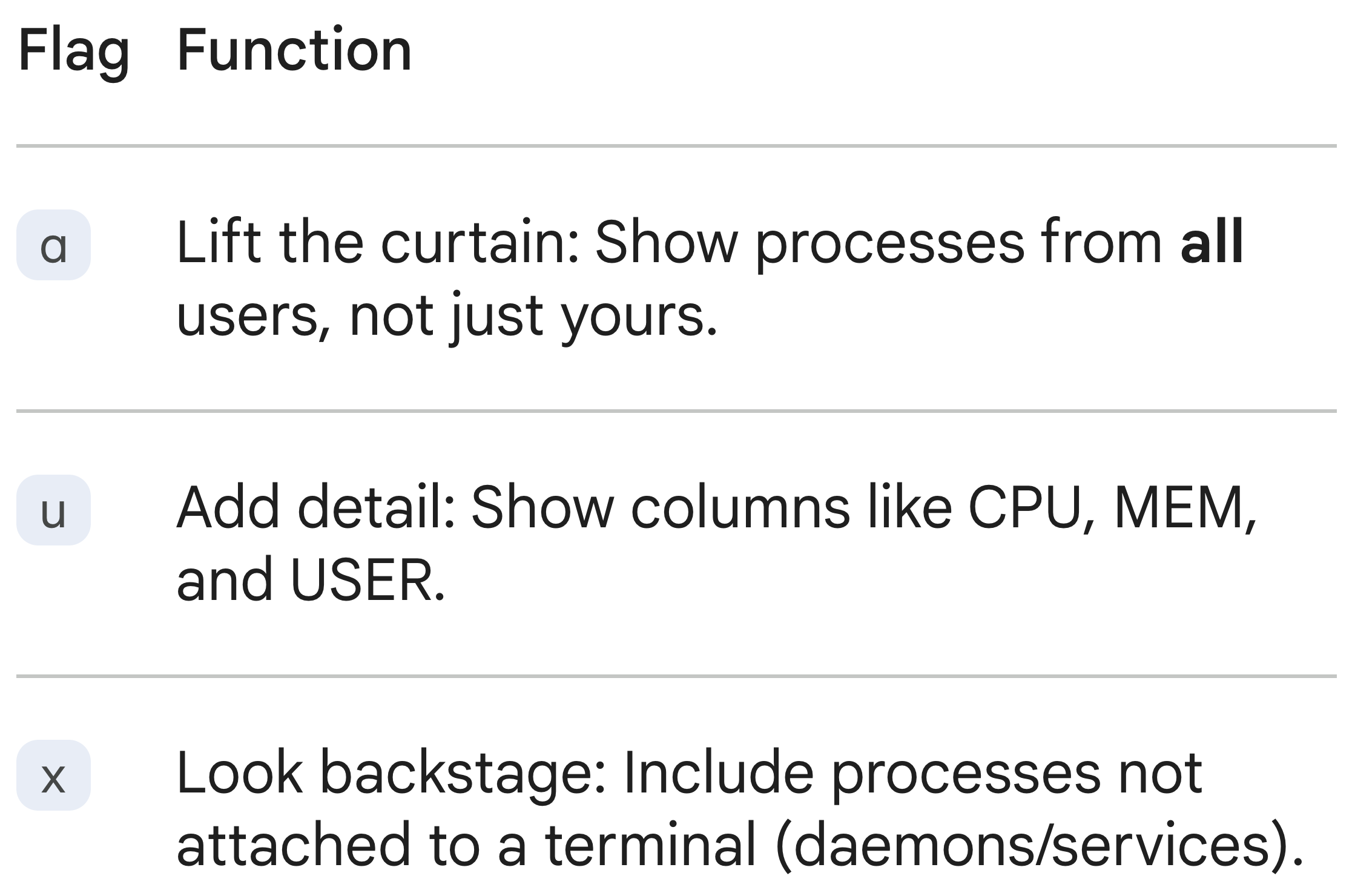
a(All users):Normally,
psonly shows your processes. Theaflag tells it to show processes for all users (you, root, system services, etc.) that are attached to a terminal.In Linux and Unix-like operating systems, the distinction between you (the user), root (the superuser), and system services (daemons) revolves around permission levels, security, and the scope of control over the system.
Root is the “superuser” or owner with absolute control.
You are a regular user with limited permissions, operating within your own home directory.
System Services are specialized, non-human, or background processes that often run with elevated (root) privileges, but are separate from the root user account itself.
u(User-oriented format):This changes how the data is displayed. Without it, you get very basic info. With
u, you get a detailed table including the user who owns the process, CPU usage, memory usage, and the start time.x(No terminal):This is the critical piece for servers. Many processes (like web servers or background daemons) don’t run inside a visible terminal window. The
xflag reveals these hidden background processes.
The Combined Meaning.
ps aux= “Show me every single process running on this system (ax), regardless of who owns it or where it’s running, and give me the detailed stats (u).”
Reading the Output
When you run ps aux, you get a wide table.
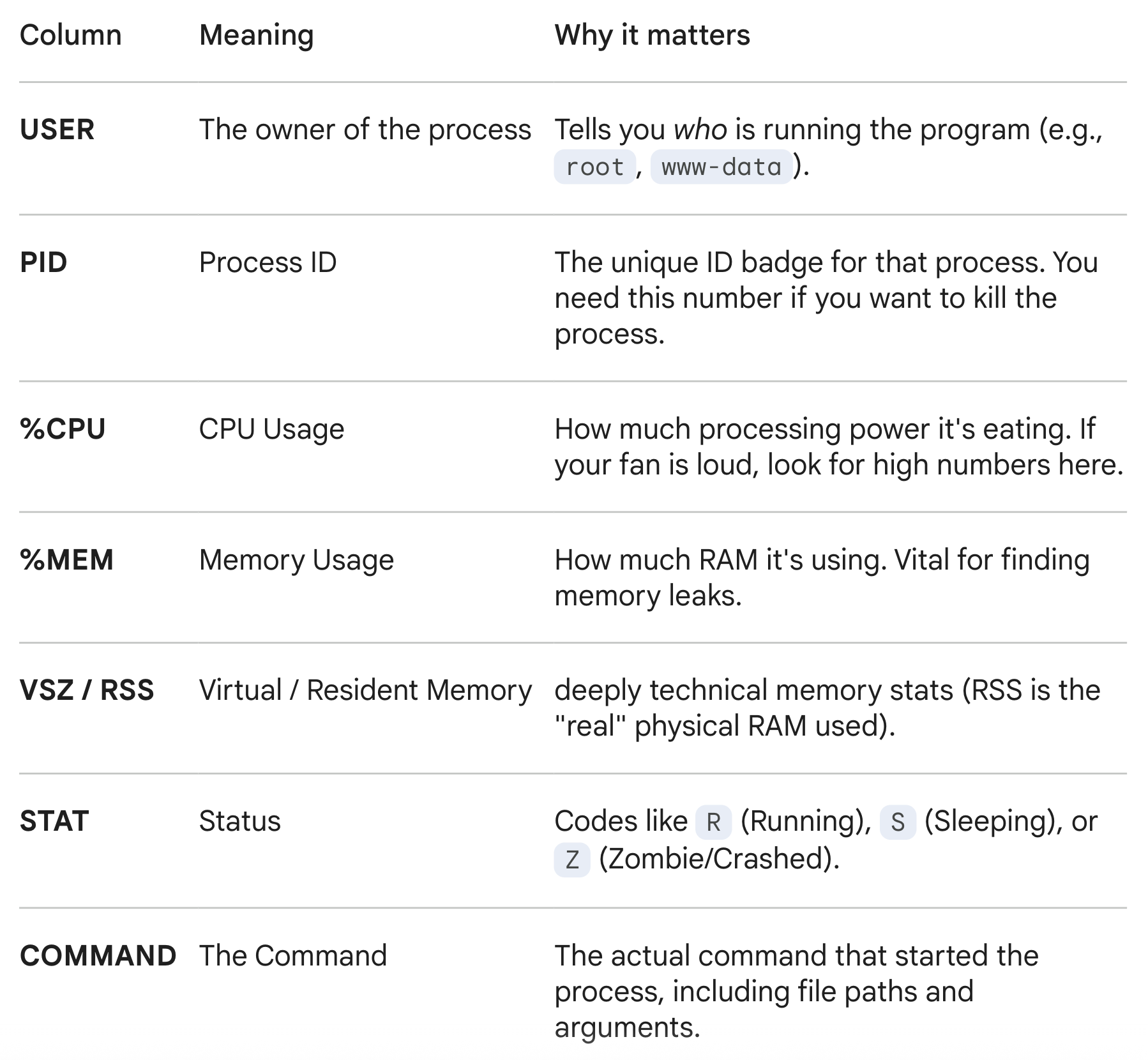
Here is how to read the most important columns:

𝐋𝐞𝐚𝐫𝐧 𝐭𝐨 𝐛𝐮𝐢𝐥𝐝 𝐆𝐢𝐭, 𝐃𝐨𝐜𝐤𝐞𝐫, 𝐑𝐞𝐝𝐢𝐬, 𝐇𝐓𝐓𝐏 𝐬𝐞𝐫𝐯𝐞𝐫𝐬, 𝐚𝐧𝐝 𝐜𝐨𝐦𝐩𝐢𝐥𝐞𝐫𝐬, 𝐟𝐫𝐨𝐦 𝐬𝐜𝐫𝐚𝐭𝐜𝐡. Get 40% OFF CodeCrafters: https://app.codecrafters.io/join?via=the-coding-gopher
Common Use Cases
1. The “Frozen App” Killer
If Firefox freezes, you can find its PID and kill it.
ps aux | grep firefox
# Output: user  1234  5.0  3.2 ... /usr/bin/firefox
kill 1234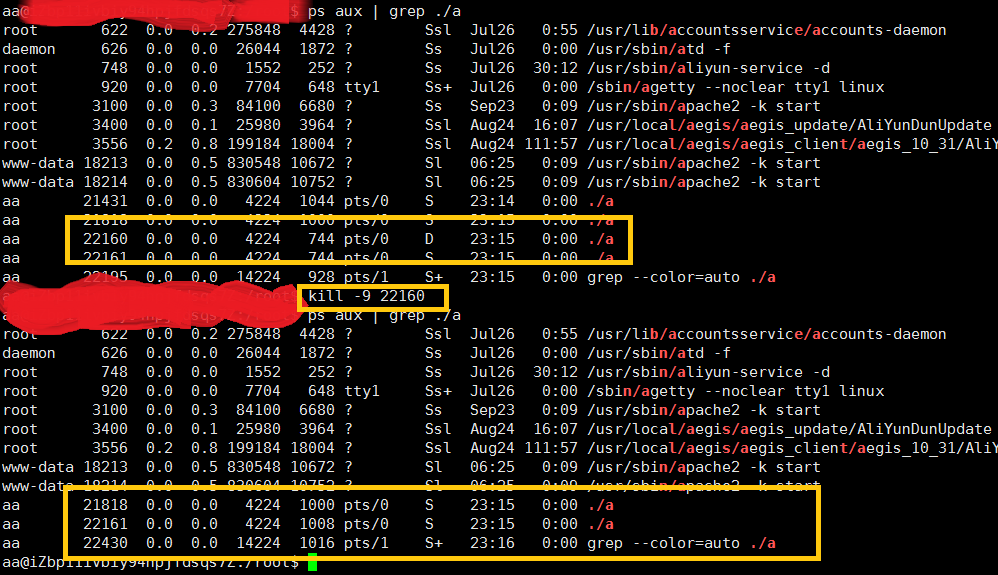
2. The Resource Hog Hunt
You can sort the output to see what is using the most memory. (Note: sort -rk 4 sorts by the 4th column, which is %MEM).
ps aux | sort -rk 4 | head3. Checking for Zombie Processes
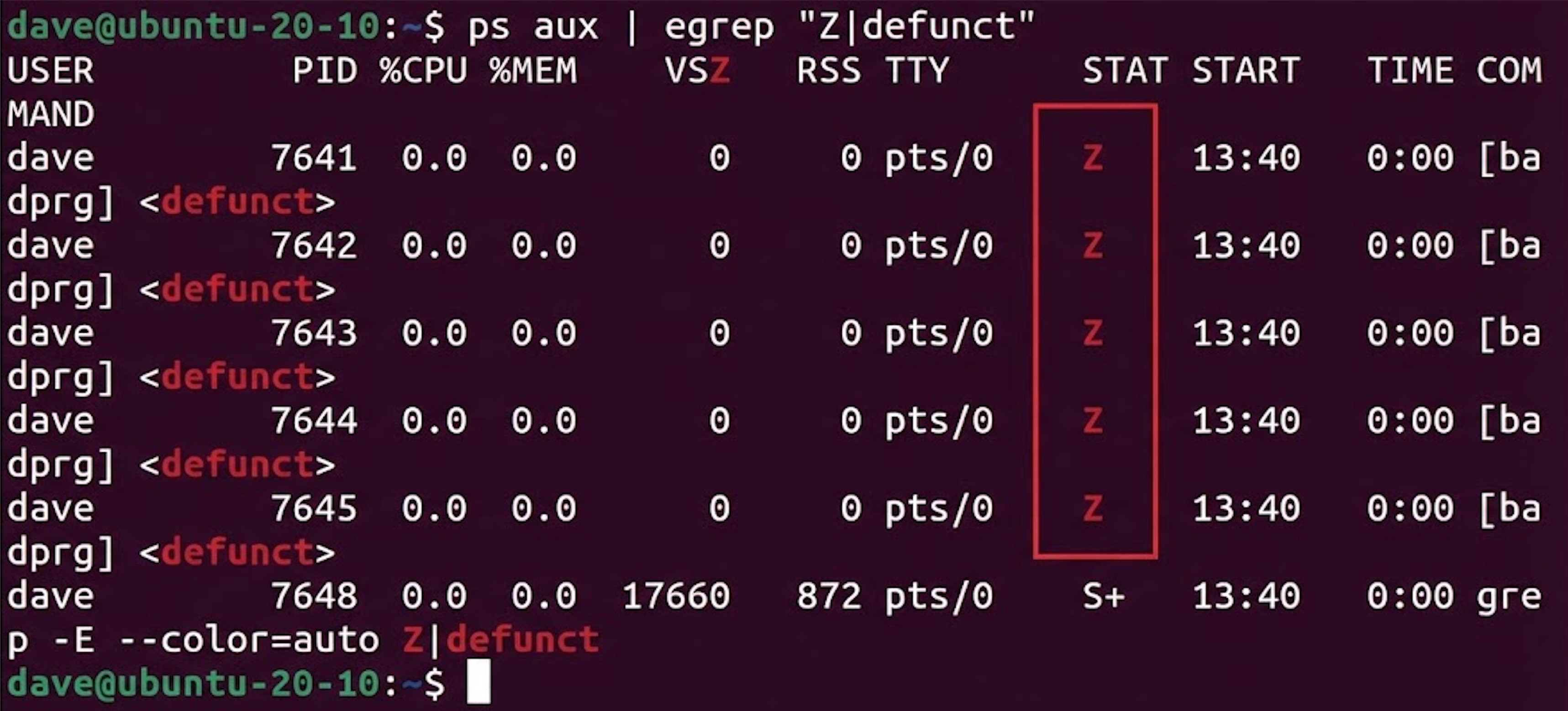
“Zombies” are dead processes that haven’t been cleaned up. They show up with a Z in the STAT column.
ps aux | grep 'Z'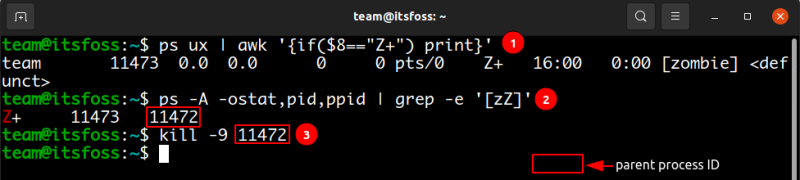
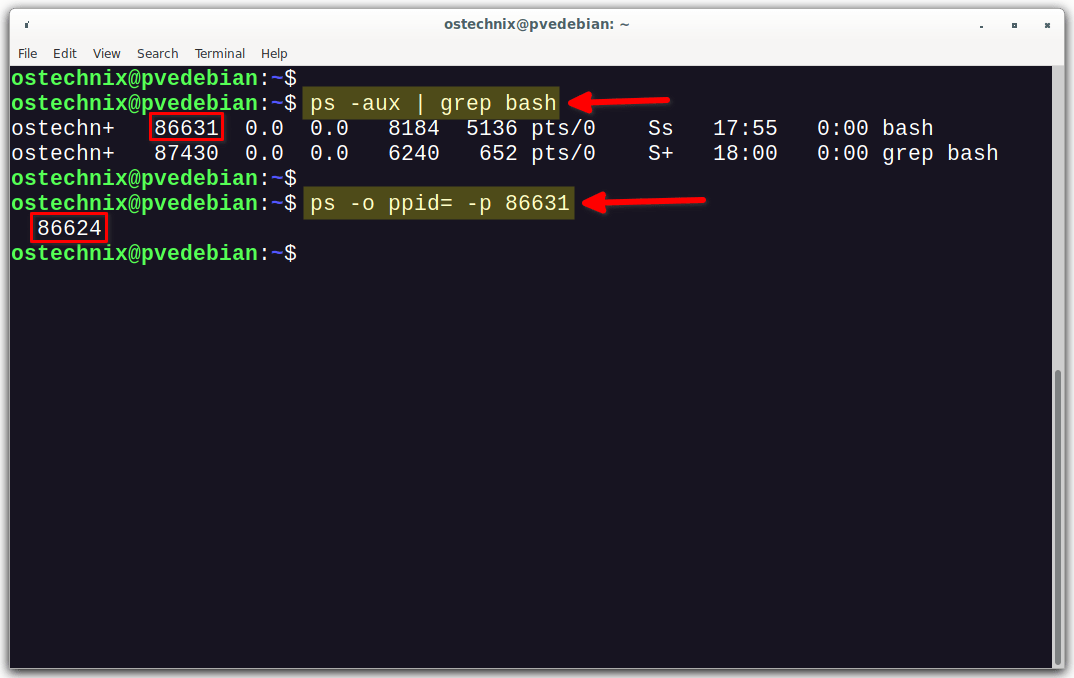
Summary Table
Conclusion
ps aux is the diagnostic X-ray of your Linux system. While modern tools like htop (a colorful, interactive version of ps) are popular, ps aux is standard on almost every Unix-like system in existence. It is the raw data that tells you the truth about your system’s health.
“the heartbeat of your system” what a wonderful way to describe it!