
The lsof command in Linux
The "Who is Touching What?" Detective

If ps aux tells you who is in the building, lsof tells you exactly what they are holding in their hands.
In the Linux world, there is a golden rule: “Everything is a file.”
A text document? It’s a file.
A hard drive? It’s a file.
A network connection to Google? It’s a file.
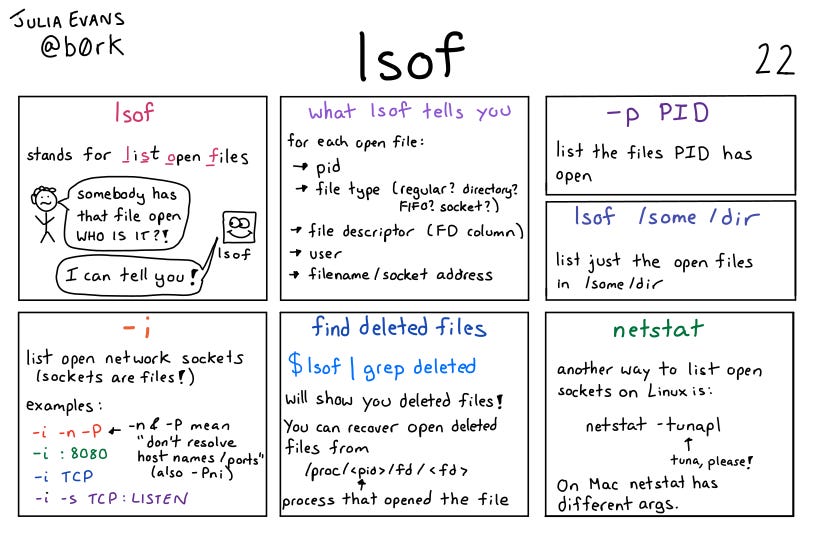
lsof stands for List Open Files. It reveals the invisible connections between processes and the resources they are using. It is the tool you grab when you try to delete a file and the computer screams, “Cannot delete: File in use.”
In Linux, a file descriptor (FD) is a non-negative integer that serves as a unique identifier or handle for an open file or other input/output (I/O) resource. The operating system kernel uses the file descriptor to manage and track the resource, allowing programs to perform operations like reading and writing without needing to know the underlying hardware details.
What is lsof?
It is a command that lists information about files opened by processes. Since “files” include network sockets and hardware devices, lsof effectively gives you X-ray vision into how applications are interacting with your system.
Note: Because
lsoflooks deep into system processes, you usually need to run it withsudoto see the full picture.
The Big Three Use Cases
While lsof has many flags, you will likely use it for three specific emergencies.
1. The “Ghost in the Port” (Network Debugging)
You try to start your web server, but it fails with: Error: Port 8080 already in use.
How do you find out who is hogging the port?
The Command:
lsof -i :8080The Output:
COMMAND   PID USER   FD   TYPE DEVICE SIZE/OFF NODE NAME
python   1234 root    3u  IPv4  99999      0t0  TCP *:8080 (LISTEN)
This tells you instantly that a python process (PID 1234) is the culprit.
You can now kill it.
2. The “Un-ejectable Drive” (File Locks)
You try to unmount a USB drive or delete a directory, but Linux says “Device is busy.”
Who is busy with it?
The Command:
lsof /path/to/file_or_directoryThis lists every process currently accessing that specific path. Often, it’s just a terminal window you forgot was cd‘d into that folder.
The Output:
$ lsof /media/backup_drive

COMMAND  PID  USER   FD   TYPE DEVICE SIZE/OFF NODE NAME
bash    2492  alex  cwd    DIR   8,33     4096    2 /media/backup_drive
vim     5103  alex    3u   REG   8,33    12288   45 /media/backup_drive/notes.txt
Breakdown of the output:
COMMAND: The name of the program holding the lock (in this case,
bashandvim).PID: The Process ID (useful if you need to
killit).FD: The File Descriptor.
cwdstands for “Current Working Directory,” confirming that a terminal window is currently sitting inside that folder.NAME: The specific file or directory being held.
3. The “Spy on an App” (Process Audit)
You want to know exactly what files a specific suspicious program (like unknown_script.sh) is looking at.
The Command:
lsof -p 1234(Replace 1234 with the Process ID found via ps aux).
This lists every single file, library, and network connection that specific process has open.
The Output:
What the output looks like when you audit a process (e.g., PID 1234):
$ lsof -p 1234

COMMAND    PID  USER   FD   TYPE DEVICE SIZE/OFF   NODE NAME
unknown_s 1234  root  cwd    DIR   8,1     4096      2 /home/admin/downloads
unknown_s 1234  root  txt    REG   8,1     1240   5102 /home/admin/downloads/unknown_script.sh
unknown_s 1234  root  mem    REG   8,1  2029224  24101 /usr/lib/libc-2.31.so
unknown_s 1234  root   3r    REG   8,1      512   8801 /etc/passwd
unknown_s 1234  root   4u   IPv4  3920      0t0    TCP 192.168.1.5:54321->93.184.216.34:80 (ESTABLISHED)
Breakdown of the suspicious activity shown:
cwd&txt: Shows the script is running from the Downloads folder (/home/admin/downloads/unknown_script.sh).mem: Shows shared libraries the script has loaded into memory (like standard C libraries).3r(File Read): The script has opened/etc/passwdfor reading (indicated by ther). This is a red flag for a “suspicious” script.4u(Network): It has an active IPv4 TCP connection to an external IP address. This confirms the script is “phoning home” or transmitting data.
In
lsofoutput, “3r” and “4u” indicate the File Descriptor (FD) number followed by the access mode. The number (3 or 4) is the integer assigned by the system, while the letter denotes access: ‘r’ means read-only, and ‘u’ means read/write mode. Therefore, 3r is file descriptor 3 opened for reading, and 4u is file descriptor 4 opened for reading/writing.
𝐋𝐞𝐚𝐫𝐧 𝐭𝐨 𝐛𝐮𝐢𝐥𝐝 𝐆𝐢𝐭, 𝐃𝐨𝐜𝐤𝐞𝐫, 𝐑𝐞𝐝𝐢𝐬, 𝐇𝐓𝐓𝐏 𝐬𝐞𝐫𝐯𝐞𝐫𝐬, 𝐚𝐧𝐝 𝐜𝐨𝐦𝐩𝐢𝐥𝐞𝐫𝐬, 𝐟𝐫𝐨𝐦 𝐬𝐜𝐫𝐚𝐭𝐜𝐡. Get 40% OFF CodeCrafters: https://app.codecrafters.io/join?via=the-coding-gopher
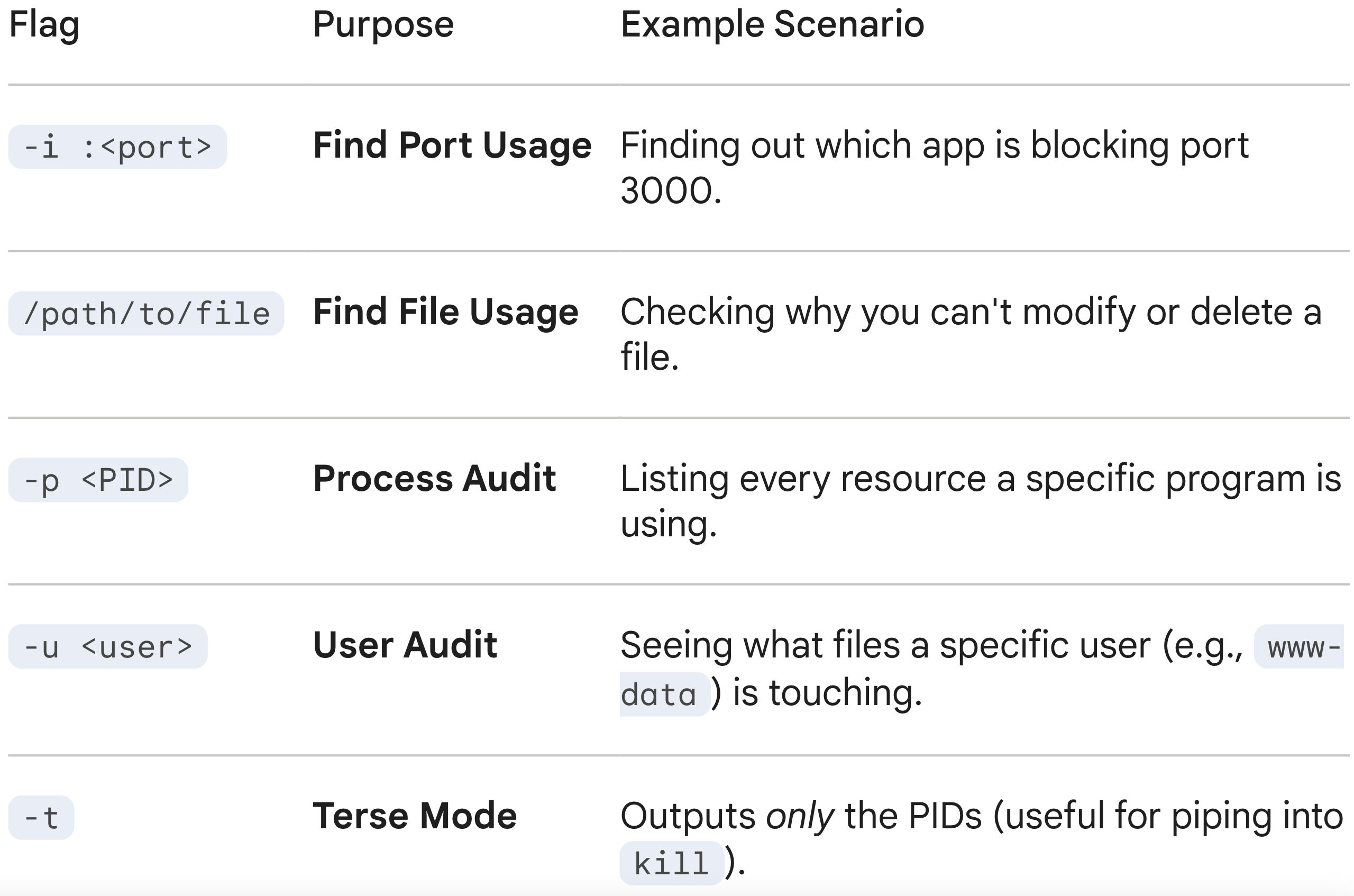
Essential Flags
-i(Internet):Lists all network files (web connections).
lsof -ishows all active internet connections.lsof -i tcplimits it to just TCP connections.
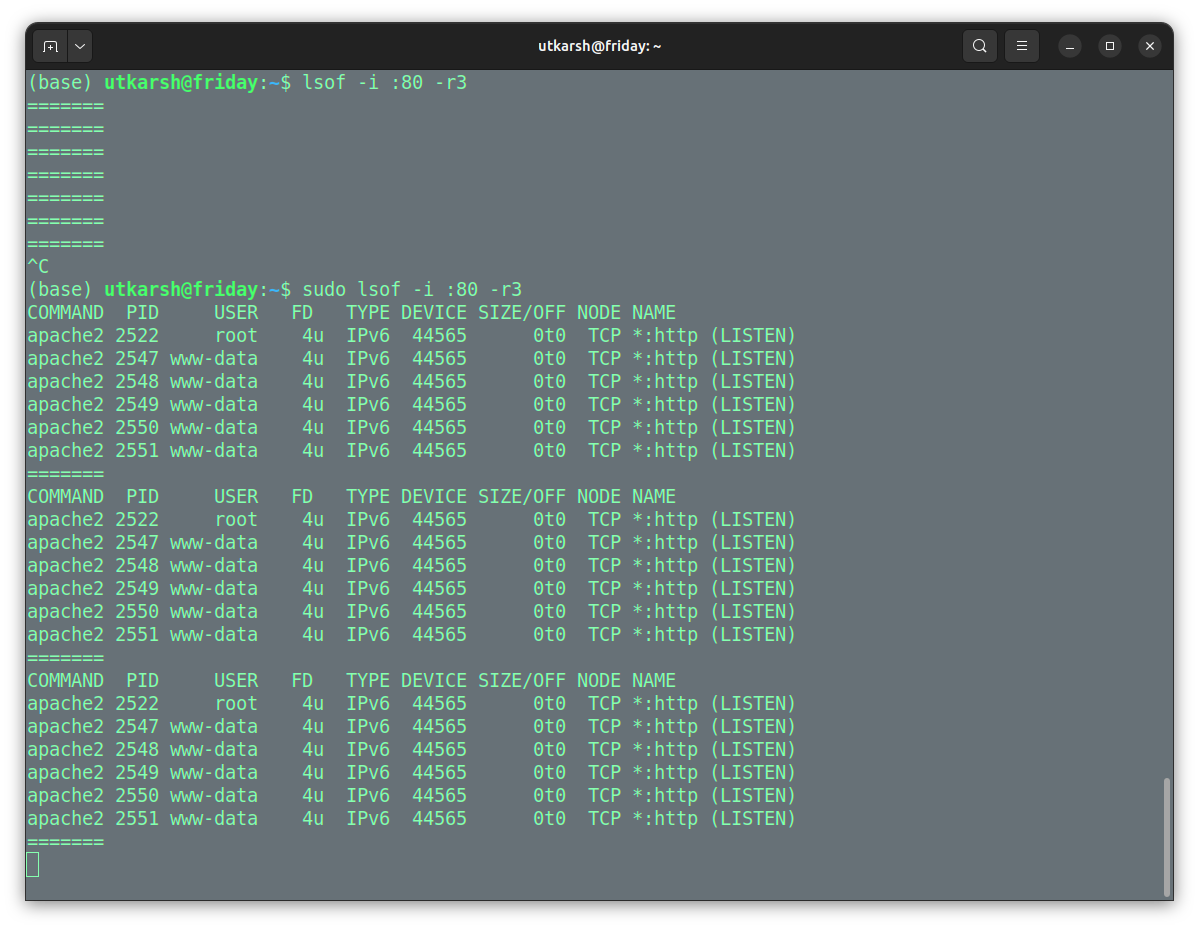
The command sudo lsof -i :80 -r3 is a Linux administrative command used to monitor in real-time which processes are using network port 80 (typically HTTP). It continuously refreshes the output every 3 seconds until interrupted.
Here is a breakdown of the command:
sudo: Runs the command with root (administrator) privileges, which is necessary to see processes owned by other users.lsof: Stands for “List Open Files.” In Linux, sockets (network connections) are treated as files.-i :80: Filters the results to show only network files (Internet sockets) associated with port 80.-r3: Enables “repeat” mode, commandinglsofto run continuously, refreshing the output every 3 seconds.
-u(User):Shows everything a specific user has open.
lsof -u jenkins+D(Directory):Recursively searches for open files inside a directory.
lsof +D /var/log/Summary Table
Pro Tip: The “Kill Everything” Combo
If you want to kill everything touching a specific folder or port, you can combine lsof (in terse mode -t) with the kill command.
Warning: This is dangerous.
kill -9 $(lsof -t -i :8080)Translation: “List the IDs of processes on port 8080, and feed those IDs directly to the kill command.”
Conclusion
lsof is your troubleshooter for resource conflicts. It answers the question, “Why is this resource busy?” by pointing a finger directly at the process responsible.
who is touching whaaaat??? 😵