
Understanding Wget
The Ultimate Download Robot

If grep is your librarian, wget is your courier. It travels across the internet, grabs the package (file) you asked for, and delivers it to your doorstep (hard drive)—all without you needing to lift a finger.

wget (World Wide Web Get) is a free utility for non-interactive downloading of files from the Web. Unlike a web browser, which requires your constant attention, wget is designed to work in the background, making it perfect for slow or unstable connections.

Why Use Wget?
You might ask, “Why not just click ‘Download’ in Chrome?”
Reliability. If your internet cuts out,
wgetcan resume the download exactly where it left off.Automation. You can schedule it to download files at 3 AM while you sleep.
Mirroring. It can download an entire website, following every link page-by-page, to create a local backup.
Headless. It runs entirely in the terminal, meaning it works on servers that don’t even have a monitor or mouse attached.
The Basic Syntax
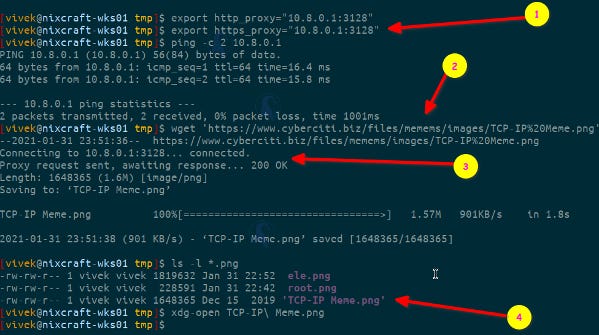
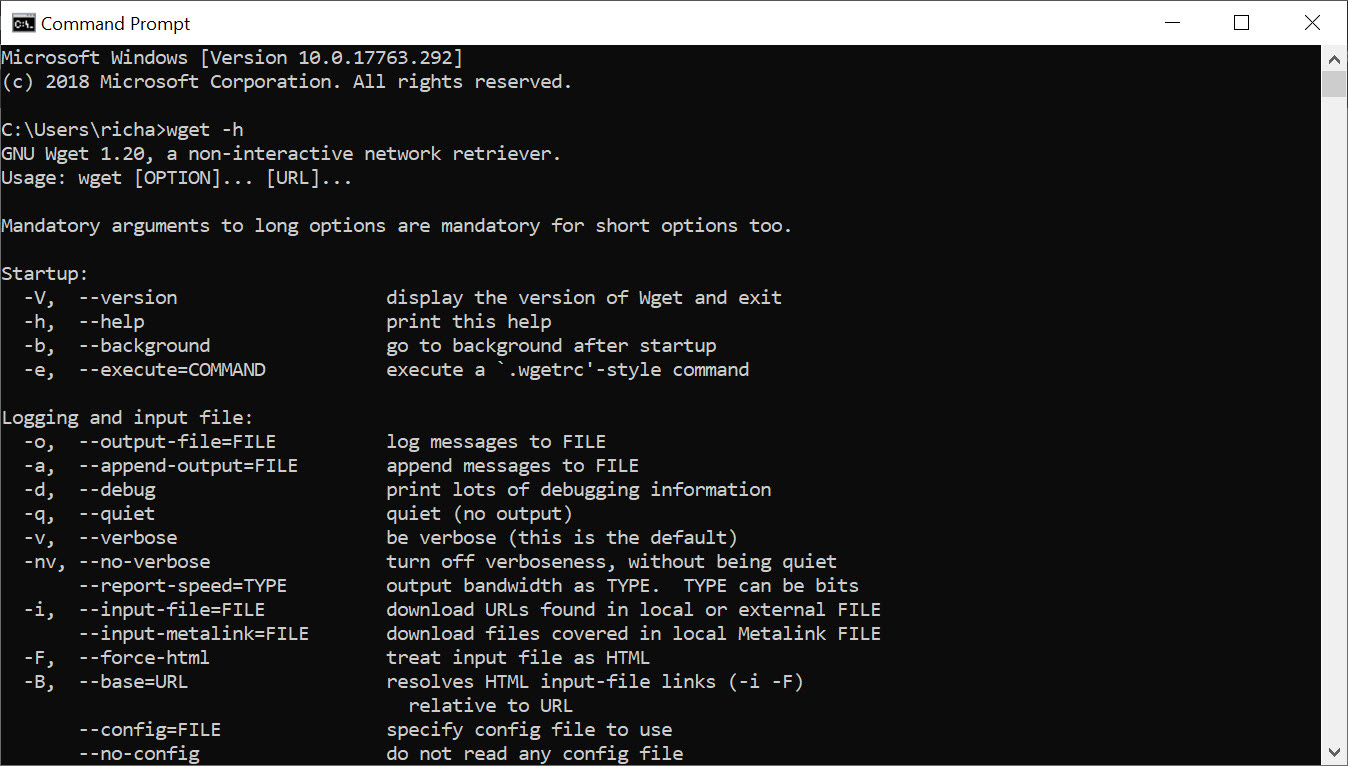
The simplest use case is just giving wget a URL. It will download the file to your current directory.
wget https://example.com/file.zipNote: If you don’t specify a name,
wgetwill save the file with the same name it has on the server.
![The “wget” Command in Linux [14 Practical Examples]](https://substackcdn.com/image/fetch/$s_!eZGo!,f_auto,q_auto:good,fl_progressive:steep/https%3A%2F%2Fsubstack-post-media.s3.amazonaws.com%2Fpublic%2Fimages%2F057c5b4e-5ca7-4129-a6cd-302a739cffd0_825x516.png "The “wget” Command in Linux [14 Practical Examples]")
The “Big Five” Flags
Just like grep, wget has specific flags that make it incredibly powerful for daily tasks.
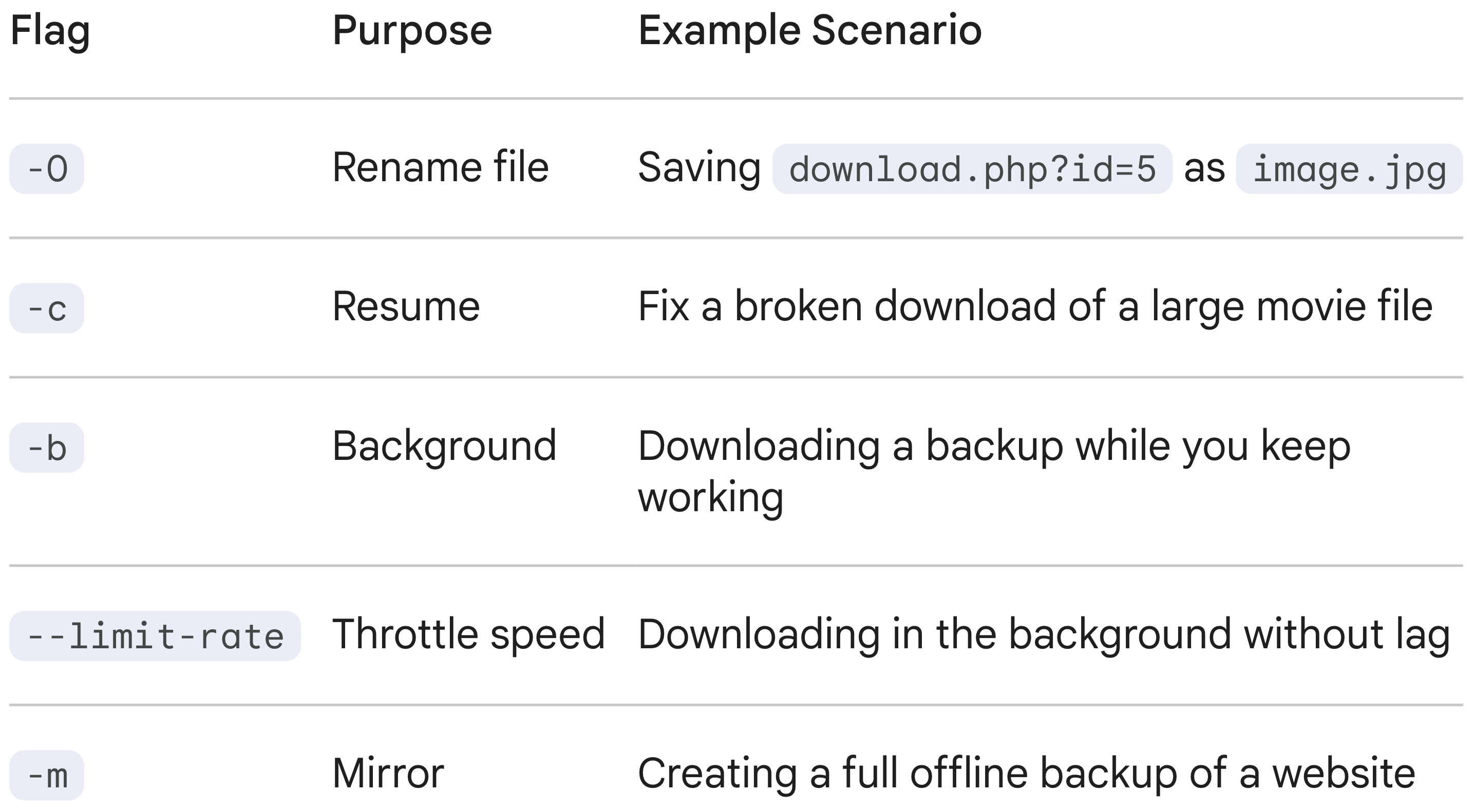
-O(Output Document): Saves the file with a specific name you choose, rather than the crazy gibberish name the server might give it.
wget -O my_report.pdf https://site.com/d/12345/view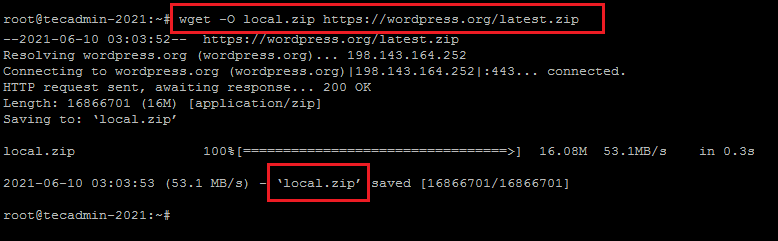
-c(Continue): The lifesaver. If you are downloading a massive 10GB file and your Wi-Fi dies at 99%, running this command will resume the download rather than starting over.
wget -c https://example.com/huge_dataset.iso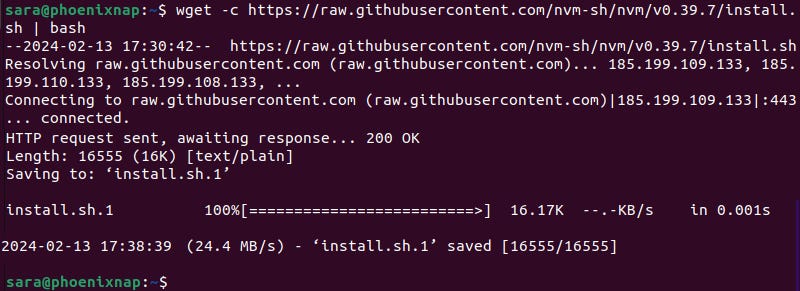
-b(Background): Starts the download and immediately gives you your terminal prompt back. The download continues in the background, and output is written to a log file namedwget-log.
wget -b https://example.com/backup.tar.gz--limit-rate(Throttling): Limits the download speed so you don’t hog all the bandwidth (great if you are sharing Wi-Fi with others).
wget --limit-rate=200k https://example.com/movie.mp4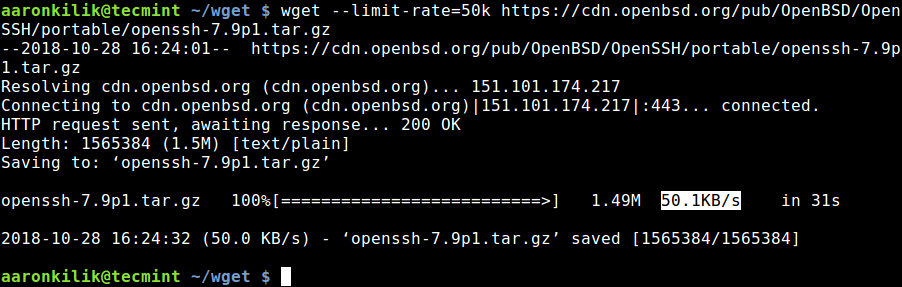
-r(Recursive): The “Spider” mode. This tellswgetto follow links. It will download the requested URL, find links inside it, and download those too. Use with caution!
wget -r -l 2 https://example.com/(Note:
-l 2limits the recursion to 2 levels deep, stopping you from accidentally downloading the entire internet.)
𝐋𝐞𝐚𝐫𝐧 𝐭𝐨 𝐛𝐮𝐢𝐥𝐝 𝐆𝐢𝐭, 𝐃𝐨𝐜𝐤𝐞𝐫, 𝐑𝐞𝐝𝐢𝐬, 𝐇𝐓𝐓𝐏 𝐬𝐞𝐫𝐯𝐞𝐫𝐬, 𝐚𝐧𝐝 𝐜𝐨𝐦𝐩𝐢𝐥𝐞𝐫𝐬, 𝐟𝐫𝐨𝐦 𝐬𝐜𝐫𝐚𝐭𝐜𝐡. Get 40% OFF CodeCrafters: https://app.codecrafters.io/join?via=the-coding-gopher
The Bulk Download Queue (-i)
While wget is great for single files, its true power as an automation tool shines with the input file flag. If you have a long list of files to grab—such as fifty different PDF reports or a series of video lectures—you don’t need to run the command fifty times. Instead, you can save all the URLs into a simple text file (e.g., queue.txt) with one URL per line. By running wget -i queue.txt, you feed the entire list to the “robot” at once. Wget will methodically process the text file, downloading every URL listed one by one, effectively turning a simple text document into a managed download queue that you can set and forget.
Authentication & Header Manipulation
Beyond basic file retrieval, wget is a potent tool for authenticated sessions and header manipulation, which is particularly useful for backend engineering and API testing. It allows you to inject custom headers (e.g., --header='Authorization: Bearer <token>') or spoof your User-Agent to bypass server-side restrictions that block non-browser traffic. Additionally, wget supports http-user and http-password for Basic Auth and can persist session state across requests using --save-cookies and --load-cookies. This makes it invaluable for debugging protected API routes or automating interactions with stateful web applications where maintaining a login session is required.
Wget vs. Curl
You will often hear about curl, a similar tool.

The main differences are:
wget‘s major strong side compared tocurlis its ability to download recursively.wgetis command line only. There’s no lib or anything, butcurl‘s features are powered by libcurl.curlsupportsFTP,FTPS,GOPHER,HTTP,HTTPS,SCP,SFTP,TFTP,TELNET,DICT,LDAP,LDAPS,FILE,POP3,IMAP,SMTP,RTMPandRTSP.wgetsupportsHTTP,HTTPSandFTP.curlbuilds and runs on more platforms thanwget.wgetis released under a free software copyleft license (the GNU GPL).curlis released under a free software permissive license (a MIT derivate).curloffers upload and sending capabilities.wgetonly offers plain HTTP POST support.
Summary Table
TL;DR
wget (World Wide Web Get) is a powerful, non-interactive command-line utility for downloading files from the internet, supporting HTTP, HTTPS, and FTP protocols, ideal for background tasks, scripting, and mirroring websites. It’s robust for slow connections, can resume interrupted downloads, and efficiently mirrors entire sites by following links and respecting robots.txt.
Features
Protocol Support. Downloads via HTTP, HTTPS, FTP, and FTPS.
Non-Interactive. Runs in the background, perfect for scripts and automation.
Robustness. Retries failed downloads and resumes interrupted ones.
Recursive Downloads. Can mirror entire websites by following links.
Proxy Support. Works through HTTP proxies.
API Interaction. Can make GET, POST, PUT, DELETE requests to REST APIs.
Basic Usage
Download a single file.
wget [URL](e.g.,wget https://example.com/file.zip).Download in the background.
wget -b [URL](e.g.,wget -b https://example.com/largefile.iso).Resume a download.
wget -c [URL](e.g.,wget -c https://example.com/largefile.iso).Mirror a website.
wget --mirror [URL](e.g.,wget --mirror https://example.com).Limit bandwidth.
wget --limit-rate=200k [URL](e.g.,wget --limit-rate=200k https://example.com/file.mp4).
How it Works
wget fetches resources from the web, translating the “World Wide Web” and “get” into its core function: retrieving web content. It’s a standard tool on Linux systems, allowing users to download files directly from the terminal without a graphical browser.
Conclusion
Wget is the tool you use when you want the job done reliably, not necessarily quickly. It is the tortoise to the web browser’s hare—slow, steady, and capable of handling interruptions that would make other tools fail.
hahahaaa the tortoise of web browsers 😆 so true